Can You Land A Plane Controls Guide
Device inputs, camera habits, and sensitivity fixes for smoother takeoffs and landings.
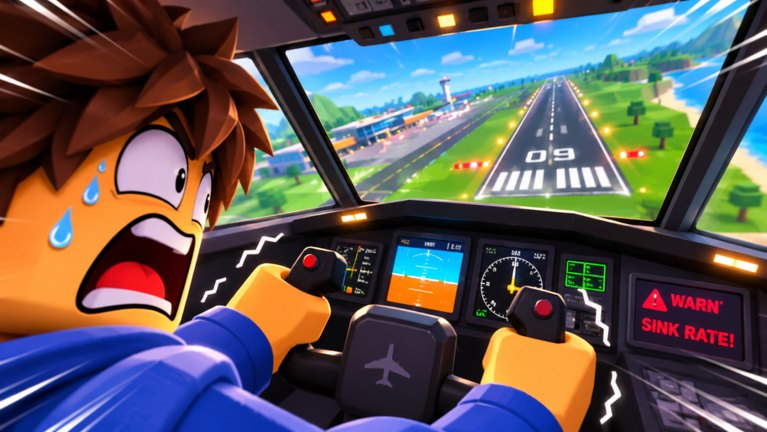
Bad landings often start as bad controls. This guide covers how to think about inputs in Can You Land A Plane across PC, mobile, and console, plus practical habits that keep flares predictable. Exact key labels can shift after a Zzz Inc patch — re-open the in-game controls or settings menu after updates listed on the Updates Hub — but the principles below stay stable.
Use this page together with How to Land and the first-hour plan in Getting Started.
Universal control principles
- Small inputs win. Aviation games punish full-stick spasms, especially near the ground.
- Separate aiming from energy. Pitch and lateral stick position aim the jet; throttle/power manages energy. Do not solve every problem with one axis.
- Configure before short final. Gear, flaps, or assist toggles belong on a checklist, not in the last two seconds.
- Camera follows the task. On final, you need runway context more than a cinematic wing view.
- Deadzones matter. Stick drift on controllers creates phantom banks that look like “random physics.”
Servers hold up to 12 players. Predictable inputs also mean fewer surprise swerves in front of someone else’s arrival.
PC (keyboard and mouse)
Typical Roblox flight mappings use keyboard for throttle and primary axes, with mouse or camera keys for view. In practice:
- Rebind anything that fights your muscle memory from other flight experiences.
- Keep throttle keys easy to tap in increments — binary slam-to-idle causes drop-ins.
- If mouse look is too hot, lower sensitivity so tiny corrections on final are possible.
- Use a headset or readable chat for ATC callouts so you are not twisting the camera through menus mid-flare.
PC players grinding licenses should also learn push-to-talk or quick chat macros for co-pilot callouts — see the Players Hub.
Mobile
Mobile is fully supported, but thumbs share space with the UI.
- Enable the cleanest control layout the game offers; hide unused panes during final.
- Lower camera sensitivity until a one-thumb nudge no longer rolls you off centerline.
- Consider a performance graphics preset if frame time spikes during storms — hitching feels like control lag.
- Land in clear weather until your thumbs learn the flare cue; then try night routes.
- When possible, play seated with stable elbows. Standing bus rides are a great way to invent new crash compilations.
If a contract pays well but your hands are sweaty, take a cargo run instead of passengers until grip improves — job risk notes live in Jobs.
Console / gamepad
Controllers shine when deadzones and sensitivity are honest:
- Increase deadzone slightly if the jet rolls while you swear you are neutral.
- Reduce stick sensitivity for pitch on short final; you can raise it again for sightseeing cruises.
- Map camera recentering to a comfortable bumper so you can snap back to the runway view.
- Avoid soft cushions that tilt the pad — literal hardware tilt becomes virtual bank.
Console crews should decide who flies before engine start. Passing the pad mid-flare is not a strategy.
Suggested settings checklist
| Setting | Beginner-friendly bias |
|---|---|
| Pitch sensitivity | Lower than default if you over-flare |
| Roll sensitivity | Moderate — enough to correct, not spin |
| Camera shake / motion | Reduce if it hides the aim point |
| Graphics | Stable frame rate over max pretty clouds |
| Volume | ATC and engine cues audible but not crushing chat |
After any mid-November-style patch, run this checklist once before a flight test fee is on the line (Licenses).
Binding priorities for the career loop
Remember what you actually do in this game: land, earn the Student Permit, fly jobs, pass tests, unlock licenses, upgrade planes, paint liveries. Bind for that reality:
- Instant access to throttle reductions for the flare
- Clear toggle for gear / configuration
- Camera reset
- Menu / rewards button that you will not hit accidentally on rollout (so you do not open codes UI while still rolling)
Liveries are cosmetic — you do not need a hotkey for the paint shop on short final.
Practice routine (15 minutes)
- Spawn and verify neutral stick/keyboard produces wings-level flight.
- Fly a straight line while making only throttle changes; notice energy.
- Fly a centerline tracking drill without touching power.
- Combine both on a calm landing per How to Land.
- Only then add a friend as co-pilot for callouts.
Troubleshooting “the plane won’t listen”
| Feeling | Check |
|---|---|
| Delayed response | Network hitch or low FPS — lower graphics |
| Constant bank | Drift / deadzone |
| Instant nose snap | Sensitivity too high |
| Missed ATC | Audio mix or camera buried in cockpit detail |
| Mobile mis-taps | UI clutter; simplify layout |
If hardware is fine but progression feels gated, that is a license or cash issue — not a reason to install random executors from the wrong side of the internet (Scripts Hub).
Accessibility-minded tips
- Prefer larger UI scale if your device supports it so gear switches are harder to miss.
- Use high-contrast daytime routes while learning.
- Remap to one-handed layouts only after you accept slower correction rates.
Related pages
Frequently Asked Questions
Quick answers for landing, licenses, codes, and jobs.
What device is best for Can You Land A Plane?
All Roblox devices are supported. Pick the one where you can make small, stable inputs — many players prefer PC or a well-tuned gamepad for flares.
Why does my plane drift with no input?
Usually controller drift or a tiny deadzone. Increase deadzone slightly and confirm the stick returns to neutral.
Should I max sensitivity for faster turns?
No for landing practice. Lower pitch sensitivity until flares are controllable, then raise it only if cruise flying feels sluggish.
Do patches change controls?
They can. After updates, reopen the in-game settings and re-run a quick neutral-input check before flight tests.
Any mobile-specific advice?
Simplify the on-screen layout, lower camera sensitivity, and keep frame rate stable so touch inputs feel consistent.